
← Help · Seller: Listings and Orders
Add Photos to a Listing
Add photos to a listing straight after you add it, or later from its row.
- 1
After Add listing, the Add Photos page opens. Choose Add photos.
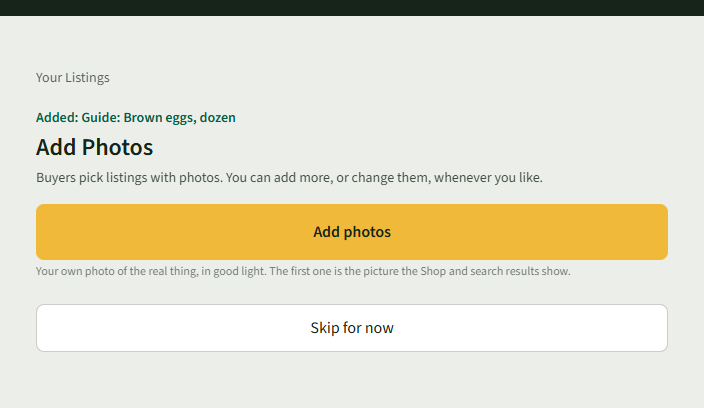
- 2
Select a photo to upload.
- 3
Choose Done to go back to Your Listings.
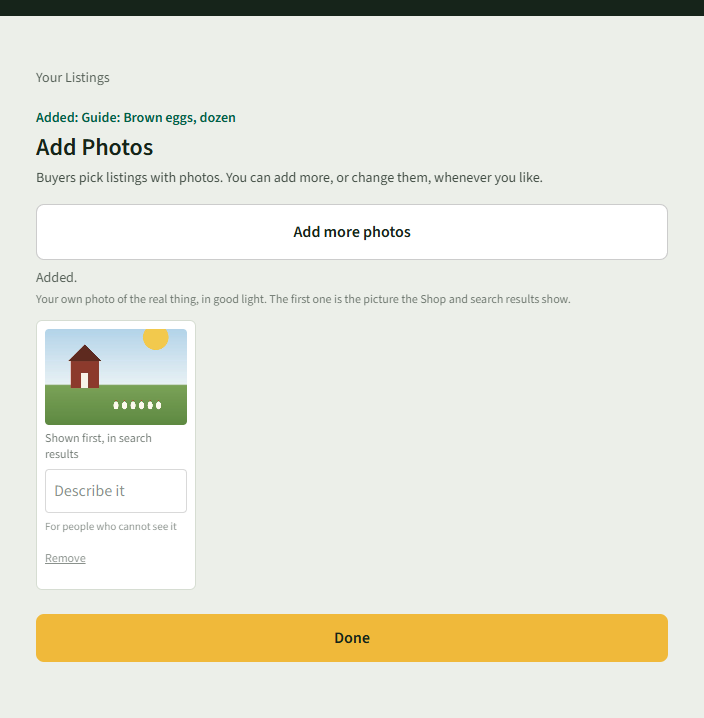
- 4
To add one later, open Your Listings and choose Add a photo (or Photos (1)) on the listing's row.
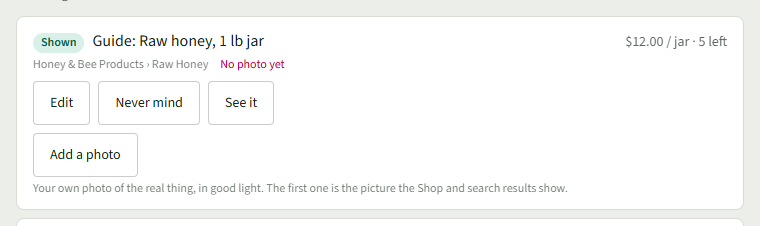
- 5
Choose Add a photo under the row and pick the photo.
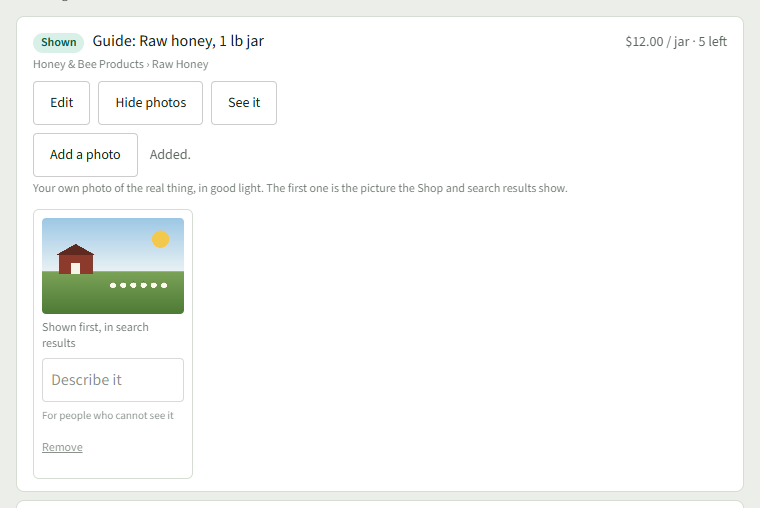
Good to Know
The first photo is the one the Shop and search results show.