
← Help · Seller: Business Suite
Record a Sale Made Off the Site
Record off-platform sales from markets or stands to maintain accurate financial records.
- 1
Open Your Store ▾, choose Your Business, then choose Off-Platform Gross Sales.
- 2
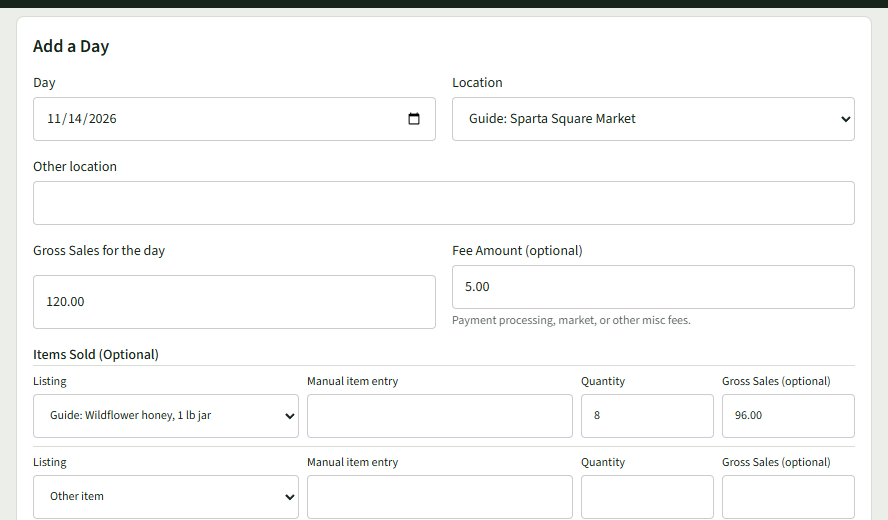
Under Add a Day, set the Day. Under Location, choose your market, or choose Other location and type the place in the Other location box.
- 3
Enter Gross Sales for the day, and anything that came off it in Fee Amount (optional).
- 4
To count what sold, use a row under Items Sold (Optional): choose a Listing, or leave Other item and type a Manual item entry; then enter the Quantity and Gross Sales (optional).
- 5
Add a Note (optional) and choose Add it.
- 6
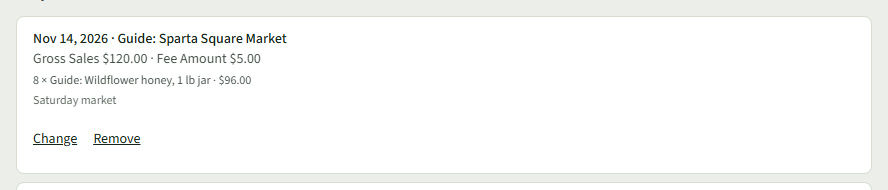
The page says Saved. and the day shows under Days in This Range, with Change and Remove beside it.
- 7
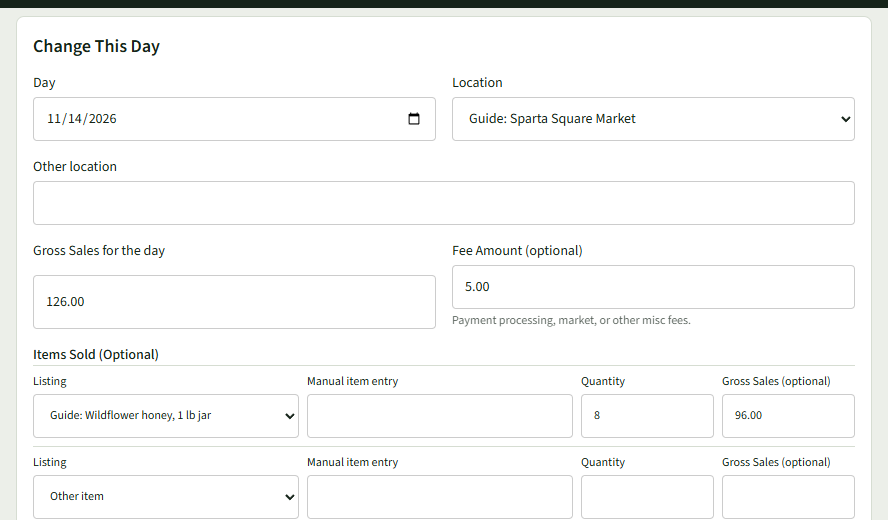
To correct a day, choose Change under it. The form above becomes Change This Day; make the change and choose Save changes, or Cancel to leave it as it was.
- 8
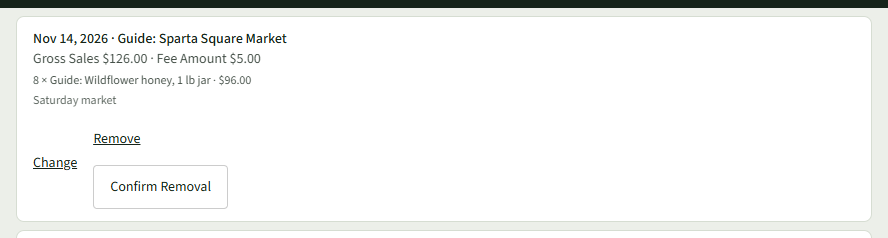
To delete a day, choose Remove under it, then Confirm Removal. The page says Removed.
Good to Know
Off-Platform Gross Sales is part of the Growth Mode plan; on Getting Going the page shows Go to Your Plan instead.