
← Help · Seller: Business Suite
Use the Pricing Calculators
Calculate unit costs, projected margins, and target pricing, and save the cost to a listing.
- 1
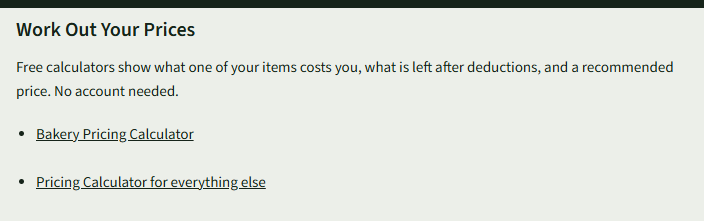
On the Sell on The Pasture Market page, under Work Out Your Prices, choose Bakery Pricing Calculator or Pricing Calculator for everything else.
- 2
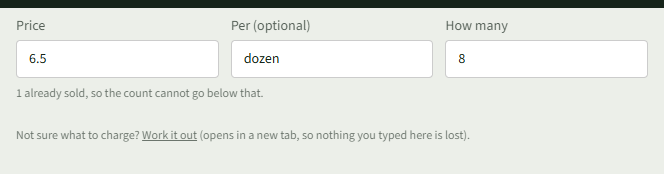
Or, on a listing's form, choose Work it out under the price. Free Pricing Calculators opens in a new tab; choose Bakery or Everything Else.
- 3
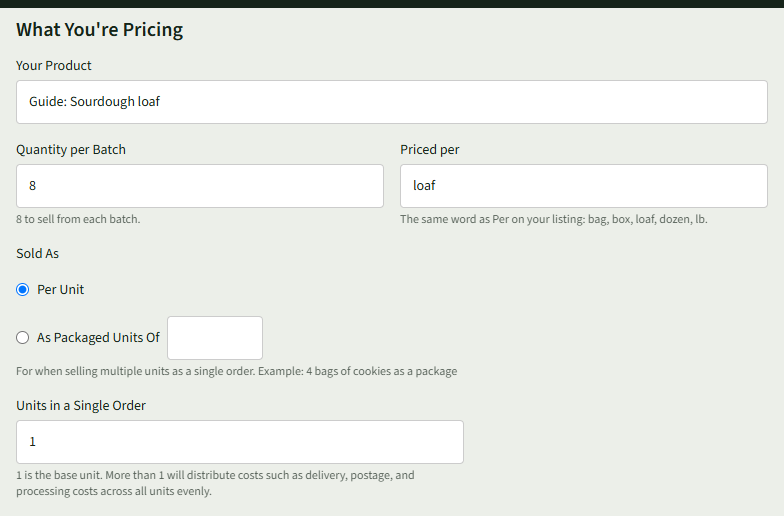
Under What You're Pricing, type Your Product and fill in Priced per. In Everything Else, choose How You Make It and fill in how many it makes; in Bakery, fill in Quantity per Batch.
- 4
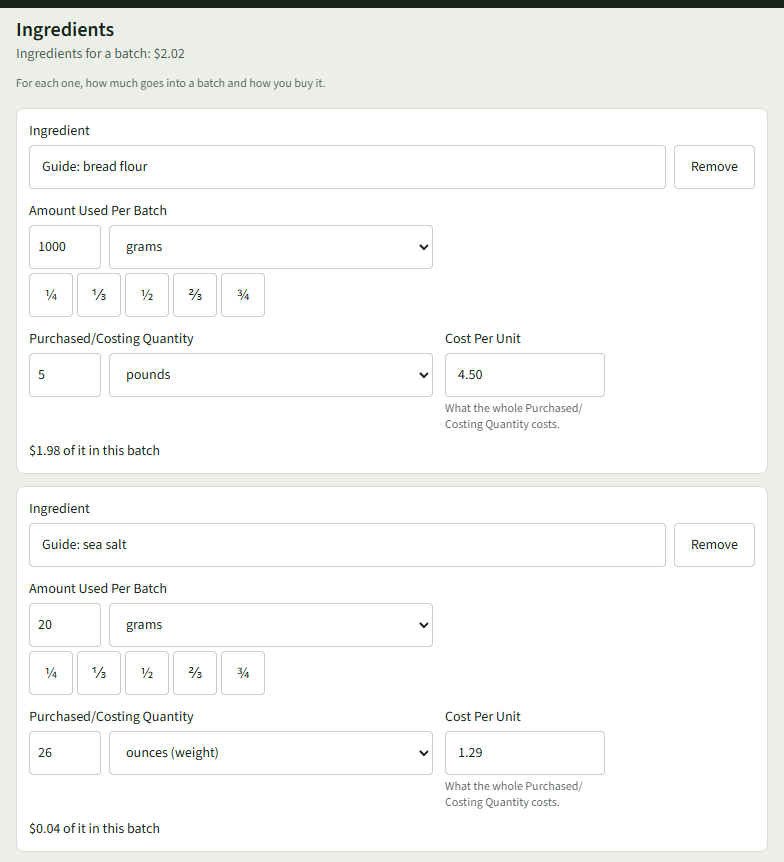
Under Materials and Supplies, enter each Material with how much you use, its Purchased/Costing Quantity and Cost Per Unit. Choose Add a material for more. In Bakery this is Ingredients: each Ingredient with its Amount Used Per Batch, and Add an ingredient for more.
- 5
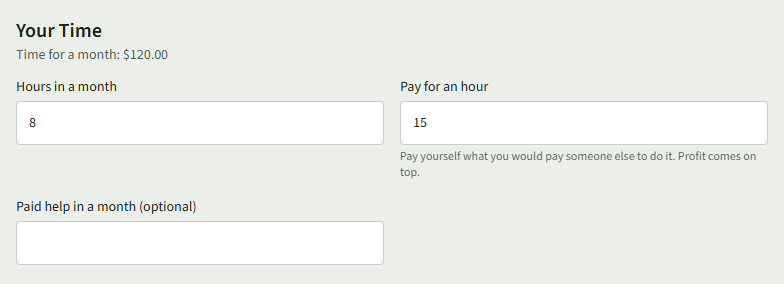
Fill in the packaging and Your Time, with Pay for an hour, and any other costs that apply.
- 6
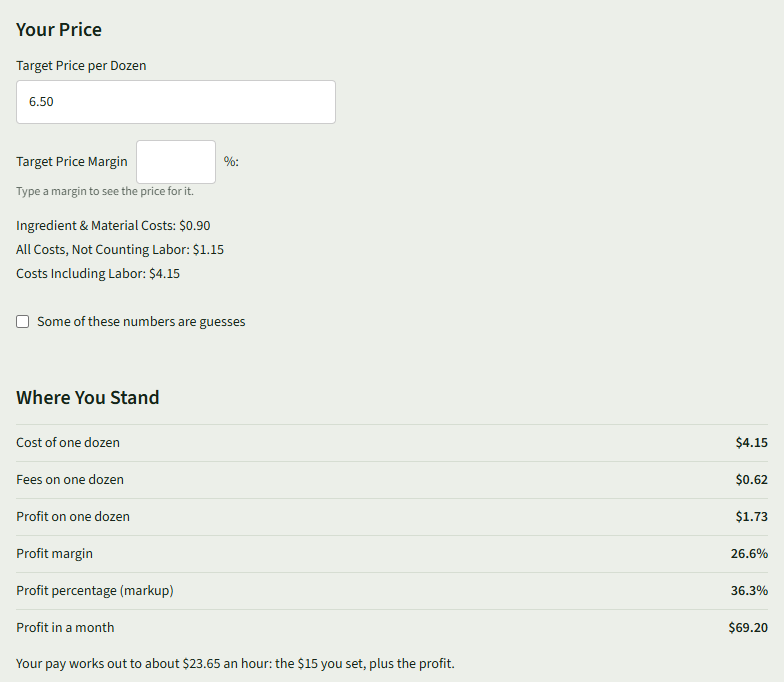
Under Your Price, enter the target price. Where You Stand shows the cost, fees, profit and margin on one.
- 7
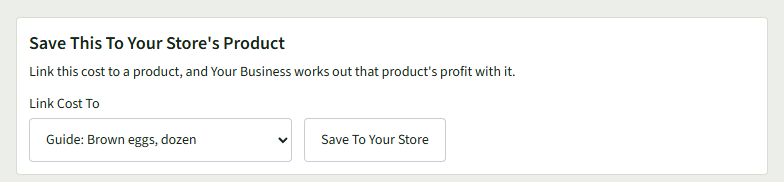
Signed in to your store, under Save This To Your Store's Product, choose the listing in Link Cost To and choose Save To Your Store.
- 8
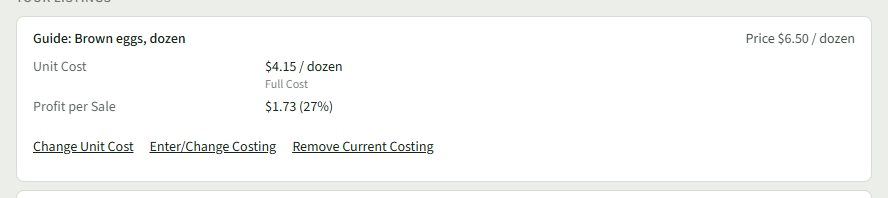
It says Saved To Your Store. On Product Costs, the listing now shows its Full Cost, with Enter/Change Costing and Remove Current Costing.
Good to Know
The calculators are free and need no account; saving a cost to a listing needs your store, on any plan, Getting Going included.